
Running Reports
A step-by-step guide to running a full scan or individual reports on the Rove platform.
Once you've uploaded your product information and hit Run Scan, you'll be taken to the scan setup page. From here, you can run a full scan across all sections or pick and choose individual reports for specific territories. The process takes just a few clicks.
Stage 1
Choose Your Scan Type
On the scan setup page, you have two options. You can run a full scan, which covers all sections of the report for your chosen territories, or you can run individual reports for specific sections only.
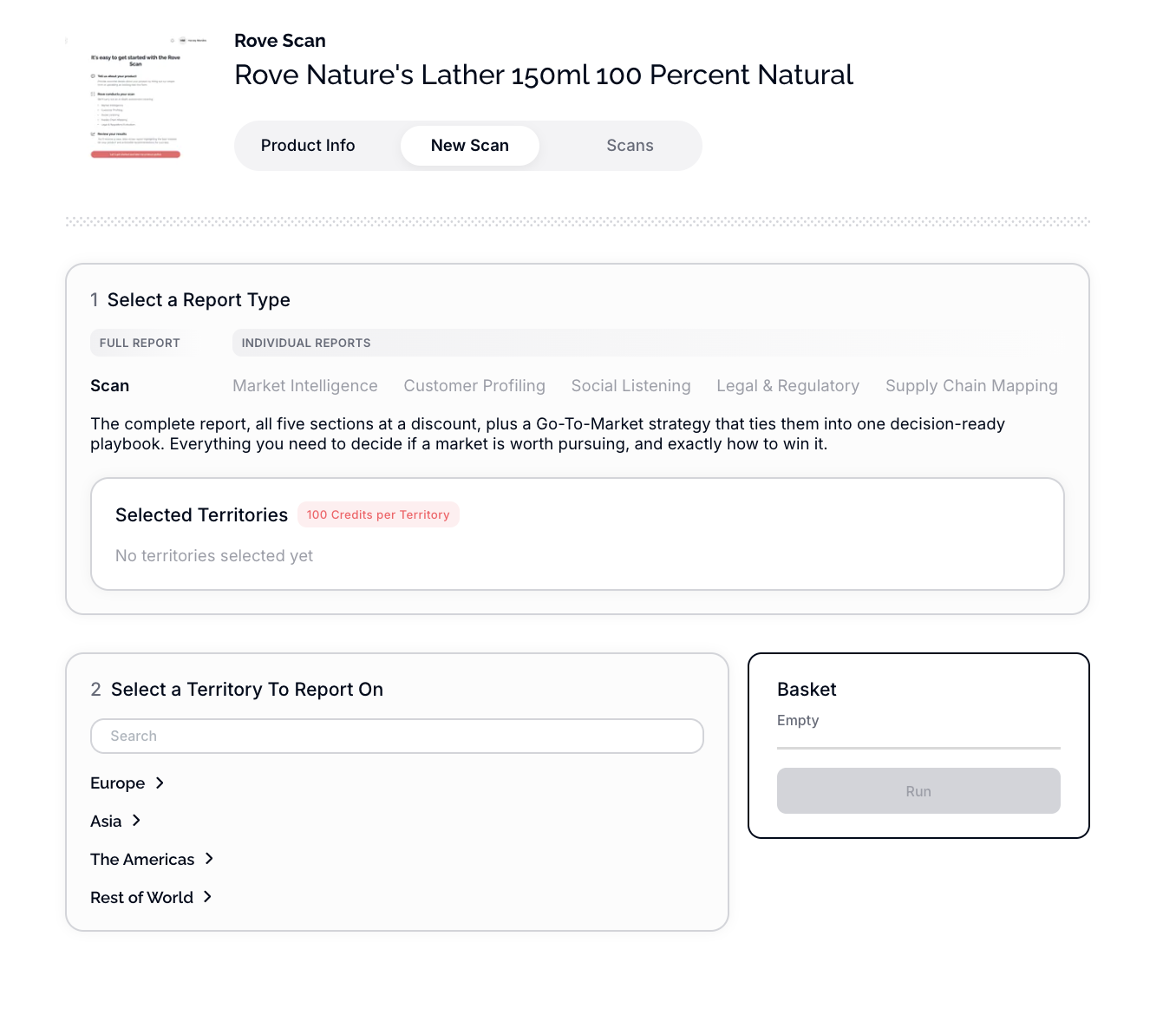
💡 Tip: If you're exploring a new market for the first time, a full scan gives you the complete picture. If you've already scanned a territory and want to go deeper on a specific area, individual reports let you do that without re-running everything.
Stage 2
Running a Full Scan
To run a full scan, make sure you're on the Scan tab, then scroll down and select a territory by clicking on it. Once selected, the credits required will be added to your basket, along with any applicable scan discount.
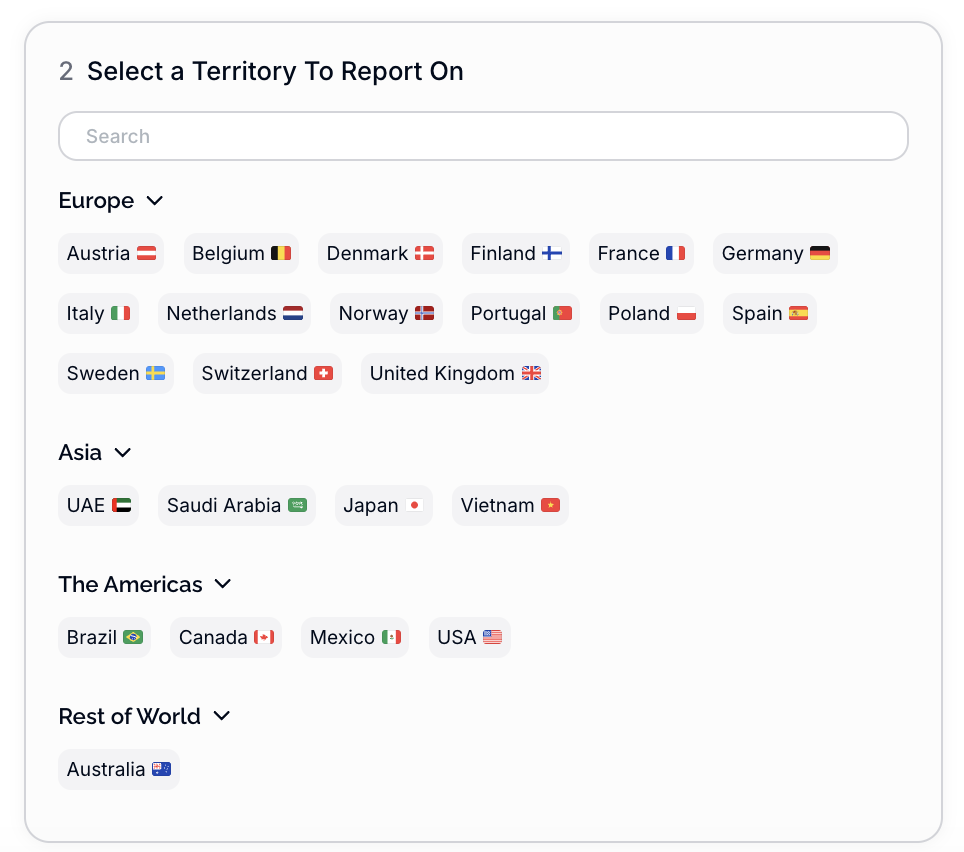
If you want to scan into more than one territory, simply add another country. Your basket total will update automatically. When you're ready, hit Run.
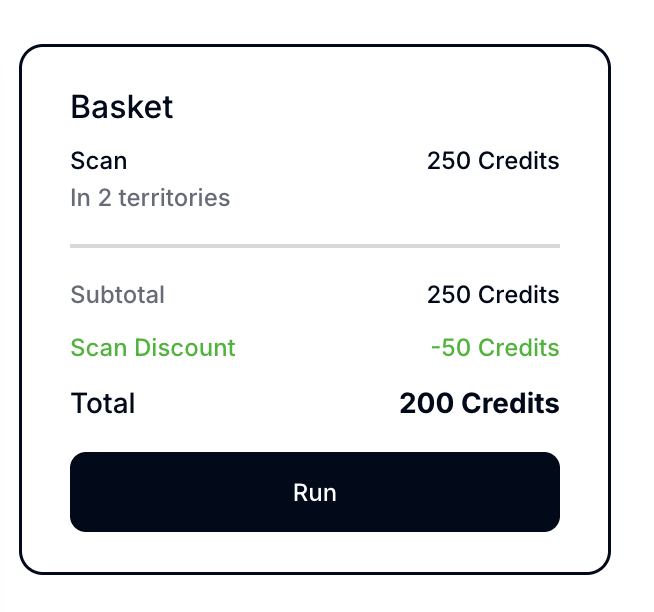
💡 Example: Selecting Japan credits your basket with 125 credits and applies a scan discount of 25 credits. Each Scan you add updates the basket accordingly You can see the running cost at all times.
Stage 3
Running Individual Reports
If you only need specific sections of the scan, you can run individual reports instead. Click into the section you want - for example, Market Intelligence - and select the territory you'd like to run it for. The cost will be added to your basket alongside anything else you've already selected.
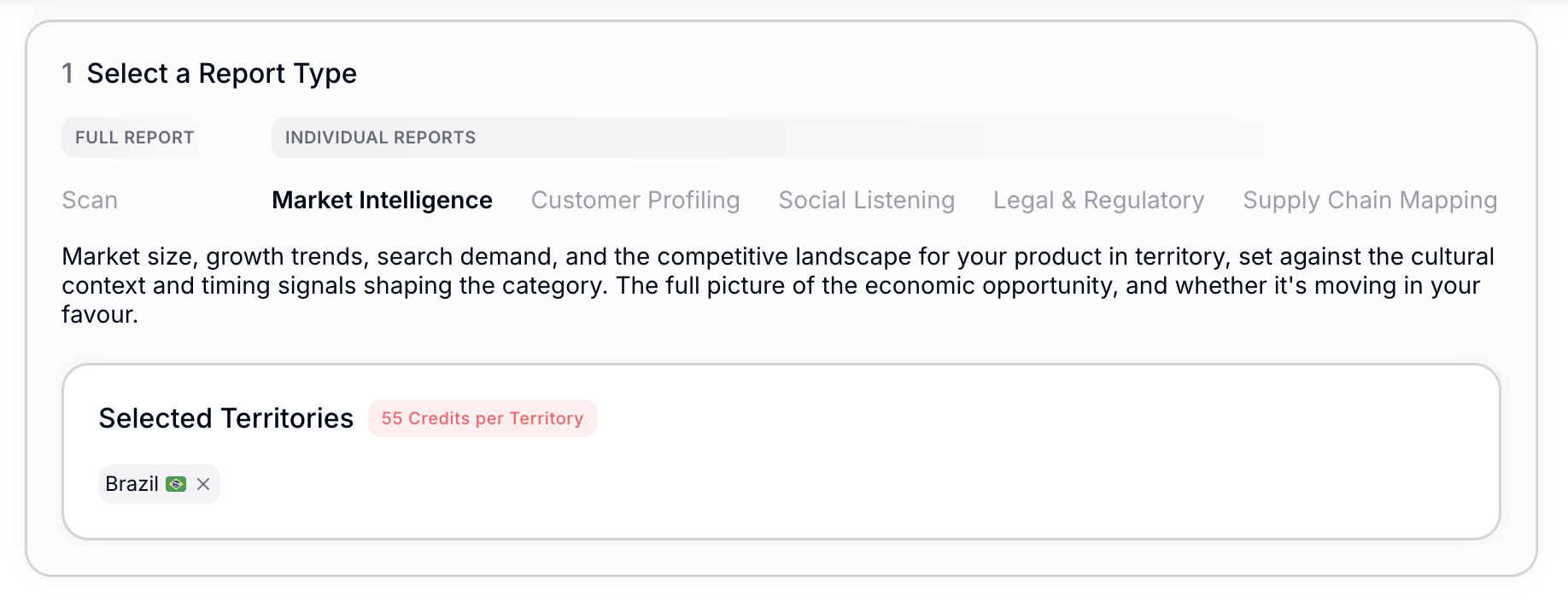
You can mix and match as you go. For example, you might run a full scan for Japan and Vietnam, add Market Intelligence separately for Belgium, and add Customer Profiling for Denmark - all in the same basket. Each section tab shows you which territories are currently selected for it.
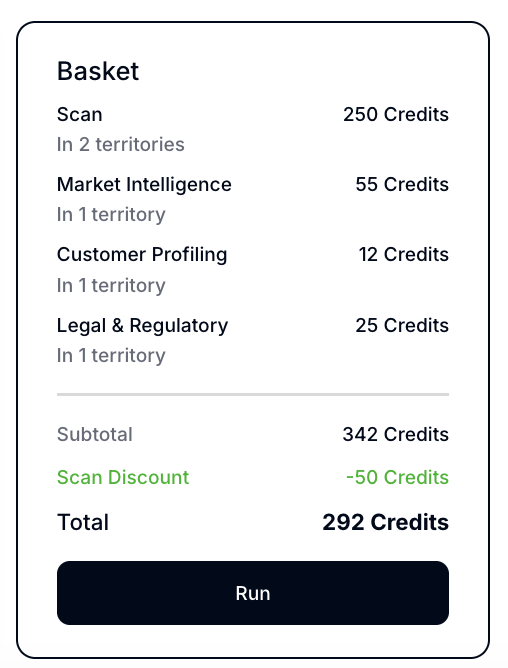
💡 Why this matters: This flexibility means you can tailor your spend to exactly what you need. There's no requirement to run a full scan if only one or two sections are relevant to your current planning.
Stage 4
Removing Selections
If you change your mind, you can remove individual territories from any section by clicking the cross next to the country when in the correct tab. Your basket total will adjust automatically.

Stage 5
Review and Run
Once you're happy with your selections, review the total credits in your basket and hit Run. Whether that's a full scan across multiple territories or a single report for one country, the process is the same!