
Navigating a Scan/Reports
A step-by-step guide to understanding and navigating Scans in Rove.
Once you've uploaded your product information and run a Scan/Reports, open the navigation menu and select Scan to find them. This is where you can access each section of your Scan, see what's been completed, and run further Reports at any time.
The Navigation Bar
The Navigation Bar is laid out as a series of tabs, one for each section of the Rove Scan. From here you can move between the sections and see which Reports have been completed and which are yet to be run.

💡 Tip: You don't need to run every section at once. You can come back to this page at any point and add individual reports to build out your scan over time.
Go-to-Market
The first tab is Go-to-Market. This report is a bonus that appears automatically once you've completed all five sections of a Scan. It brings together everything from across the Scan to give you one plan: how to get your product there, and how to win once it's on the shelf.
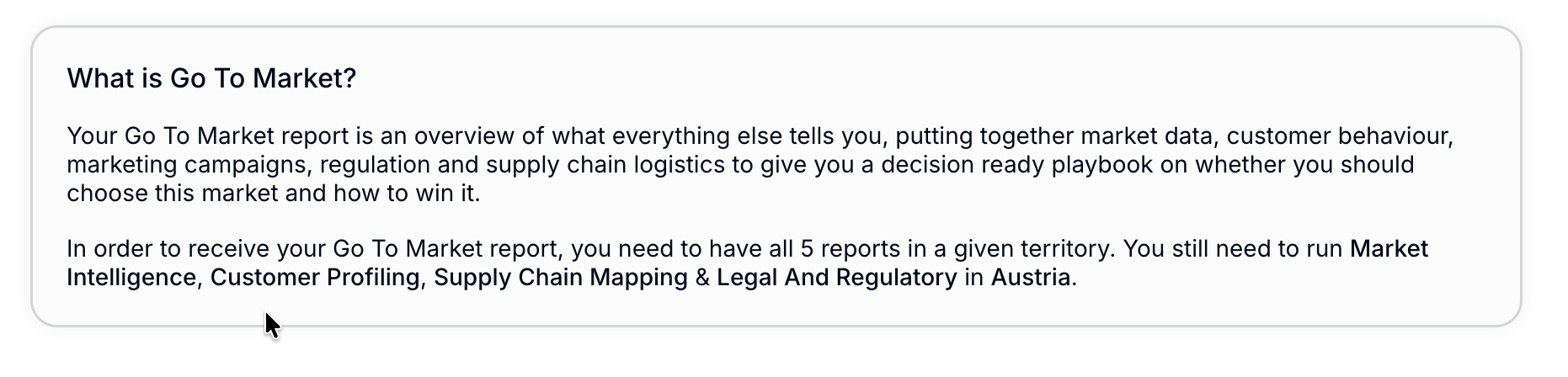
💡 Why this matters: The Go-to-Market report is the final piece of the puzzle - it only unlocks when all five sections are complete, so it draws on the full picture.
The Five Report Sections
The remaining tabs cover the five core Reports of every Rove Scan: Market Intelligence, Customer Profiling, Social Listening, Legal and Regulatory and Supply Chain Mapping.
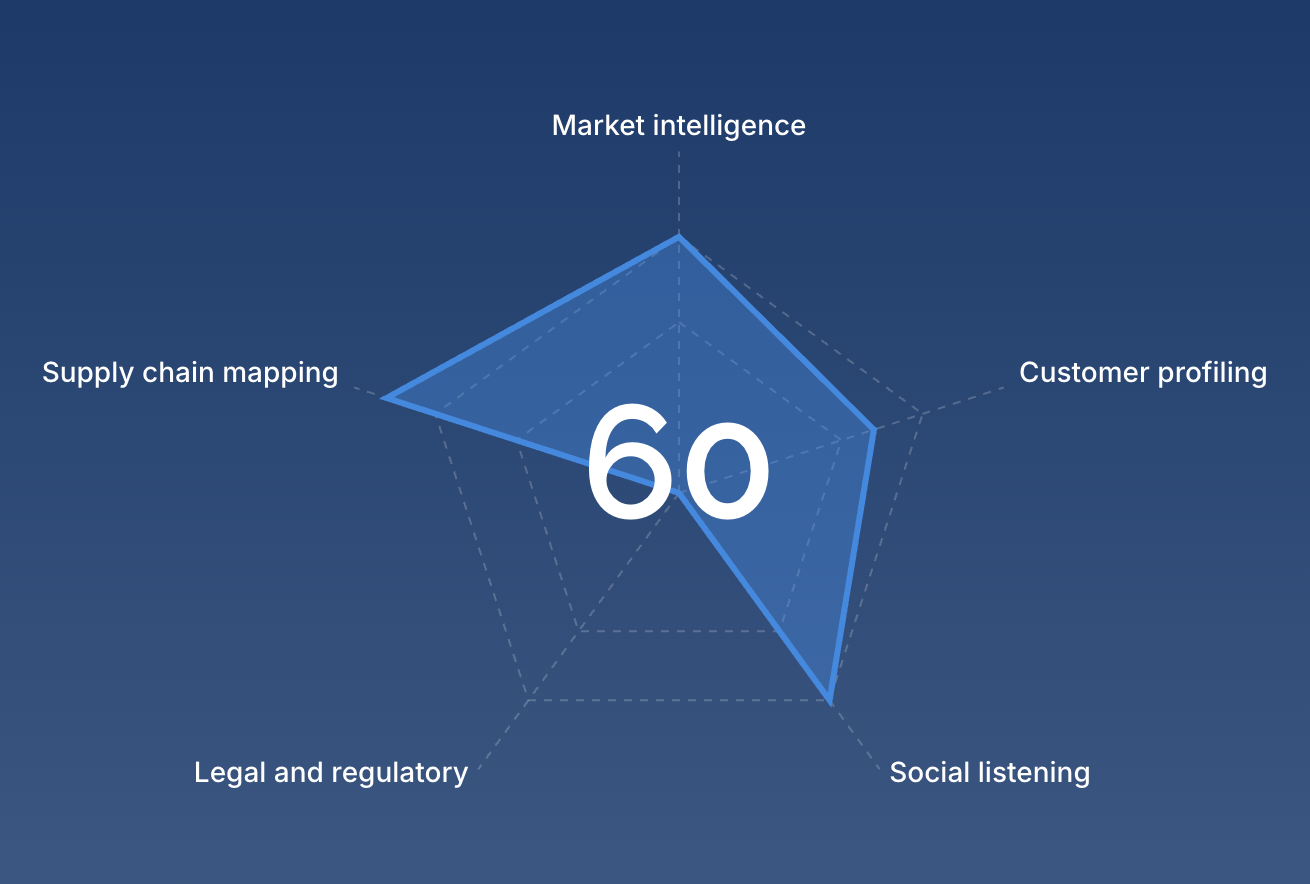
If the Go-to-Market report has not yet appeared, there will be a summary on this tab of what you need to complete!
Completed sections are ready to explore by clicking on the tab, the navigation within each one is consistent and covered in the individual deep dive guides.
Adding Reports to an existing Scan
You can add further Reports at any point.
To add reports, there's no need to start again - simply select the tab of the report you want to add hit Generate Report. Once all five sections are complete, the Go to Market report will appear automatically.

💡 Tip: If budget or timing means you can't run a full scan upfront, start with the sections most relevant to your immediate planning and add the rest as you need them.
Adding territories and running a complete Scan
You can add further territories to your Scan at any point by hitting the + in the top right of the Scan, you then select territories and reports and hit generate
