
Uploading Your Product to Rove
A step-by-step guide to uploading your product information to Rove and running your first Scan.
Pre-upload
Gather your Mandatory Product Information
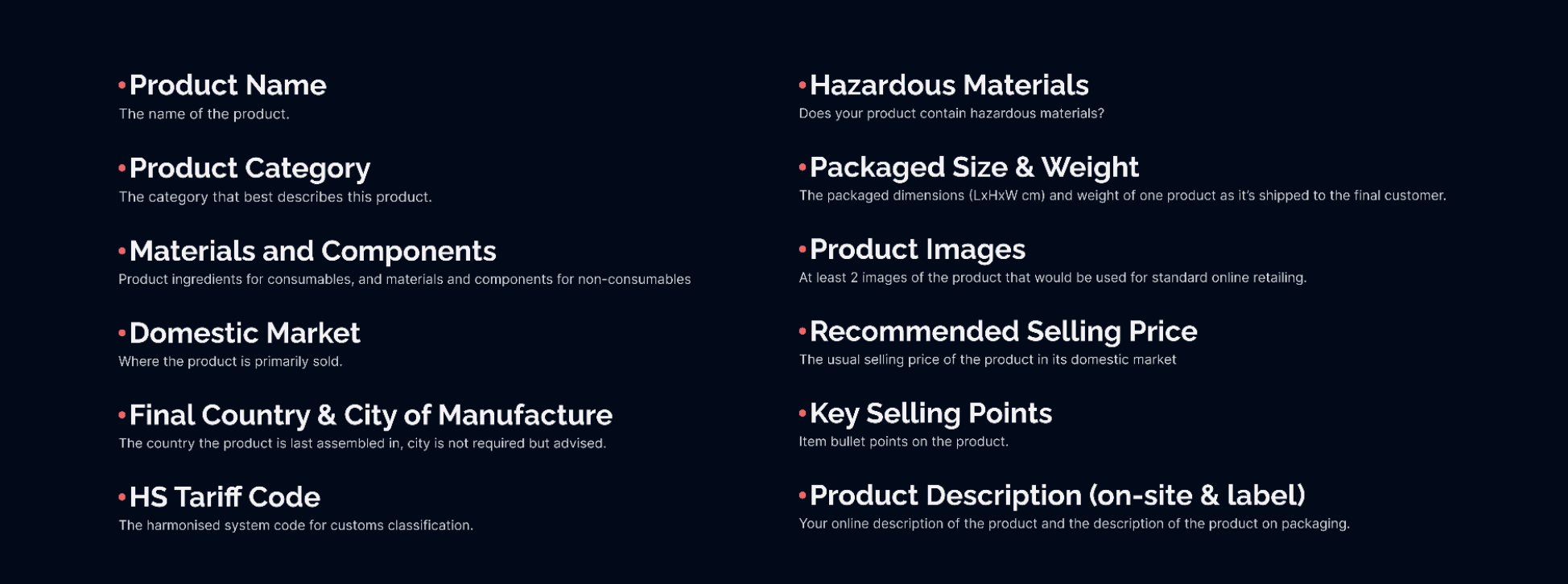
💡Tip: The more information you have the better! More detail on upload = more detail on Rove Scan output. View an template for your upload here.
Stage 1
Start: Upload your product information
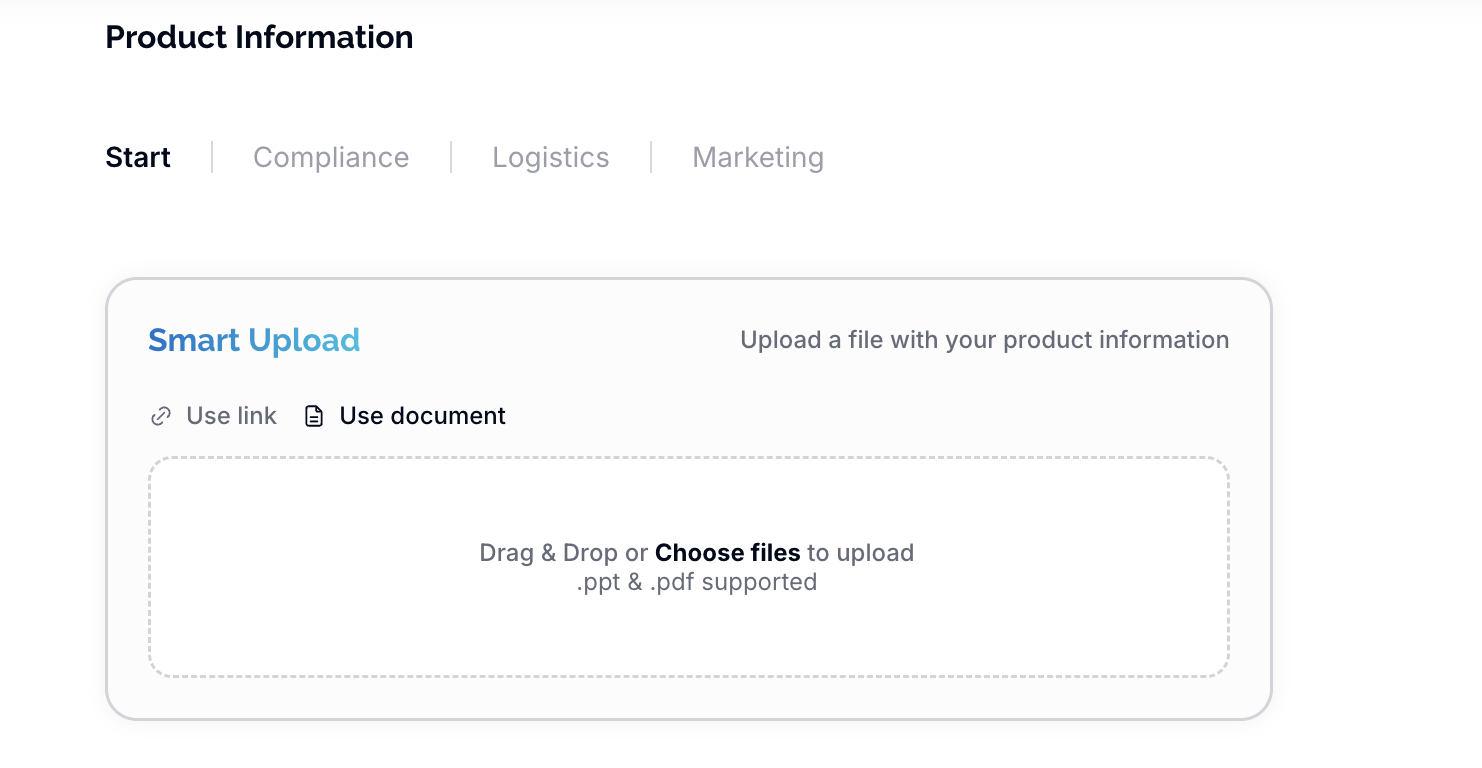
Start by uploading the documents you'd like to use to map your product information or input the information manually. Documents must all relate to one individual product and must not cover a range of products. If you'd prefer, you can also input the product information manually by scrolling down this page.
💡Tip: Navigate back and forth between pages using the buttons at the bottom. If all *Mandatory Fields are not complete the Red button won't appear. Check your inputs carefully!
Stage 2
Checking Product Information
Work through each section, checking the information that's been pulled in or inputting it yourself. Some fields are optional, some are mandatory (identified by the red asterisk).
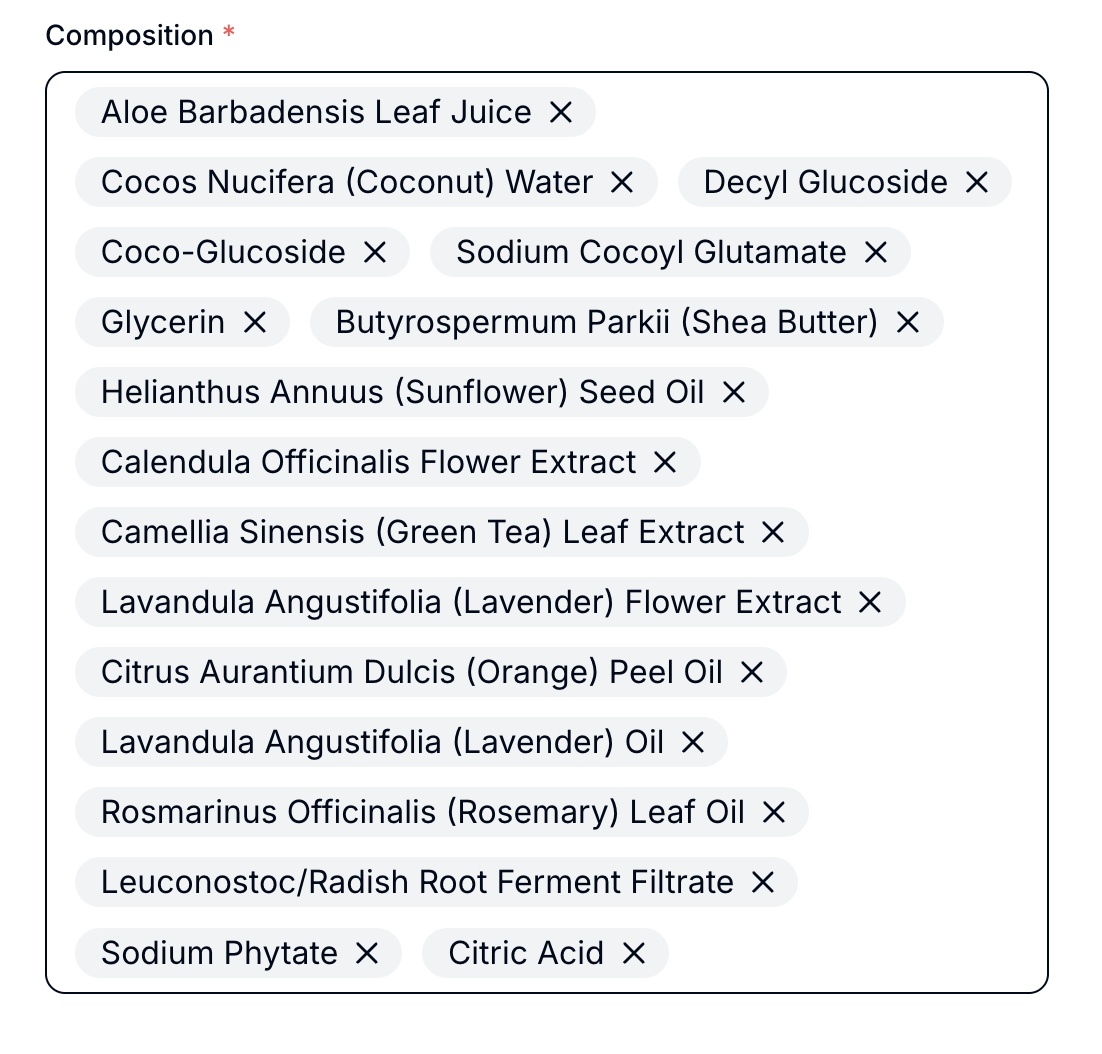
In the composition section, include as much detail as you can. Whether that's all the components for consumer electronics, or full ingredients for other product types - the more information we have, the more detailed your compliance results will be. Click the X to delete, and type in the box and hit enter to add.
💡Tip: Pay particular attention to the category. This is where we pull a lot of our market intelligence from, so it's important it's correct - drop down to scroll the list of categories.
Stage 3
Compliance
If your product has allergens or shelf life information, fill in the optional nutritional and regulatory fields.
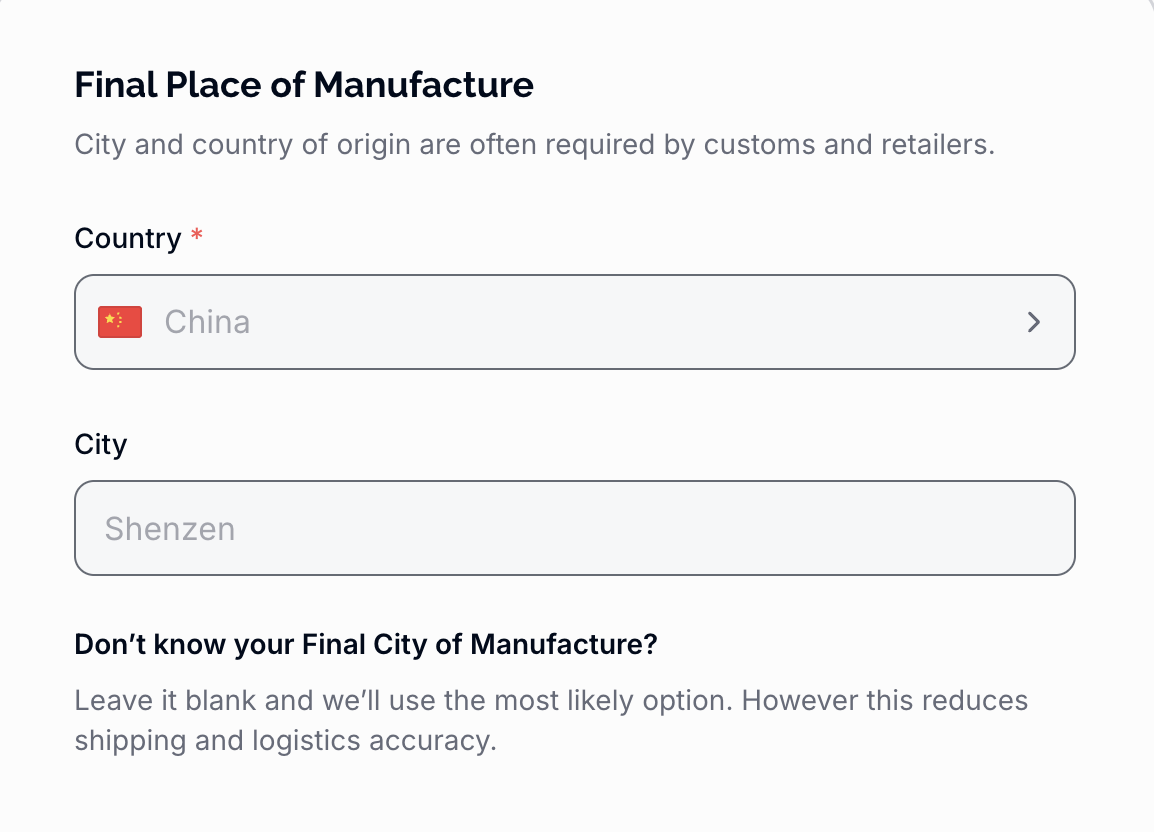
Next, add your manufacturer information. Country is required; city is optional. Enter your HS tariff code, which is used for shipping.
In the product trademarks section, search for your product name. If you own trademarks, you can add them here and select the class and territory under which you hold them; if you don't know what you might trademark, hit the 'Generate' button and Rove will do the work for you!

Stage 4
Packaging
Check the size and dimensions. Confirm the packaged weight and add any recycling information.
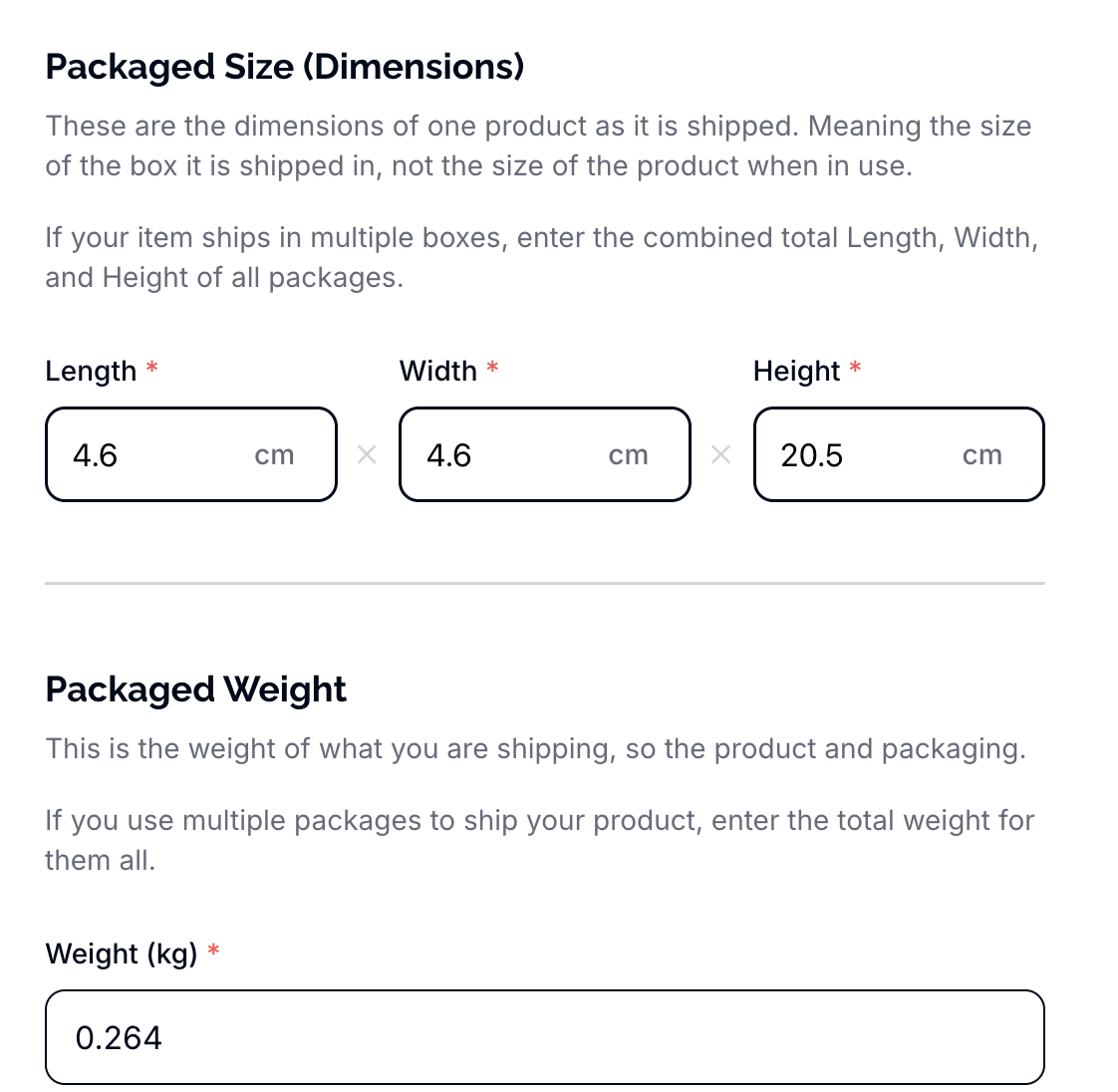
💡 Double Check: Your packing metrics should reflect one unit of the product as it's shipped: not the dimensions of the product when in use.
Stage 5
Marketing
Upload your product images. A minimum of two is required (.jpeg/.png), but you can upload as many as you like. If you're planning to push your products to Rove Secure, all uploaded images will be available to display there.
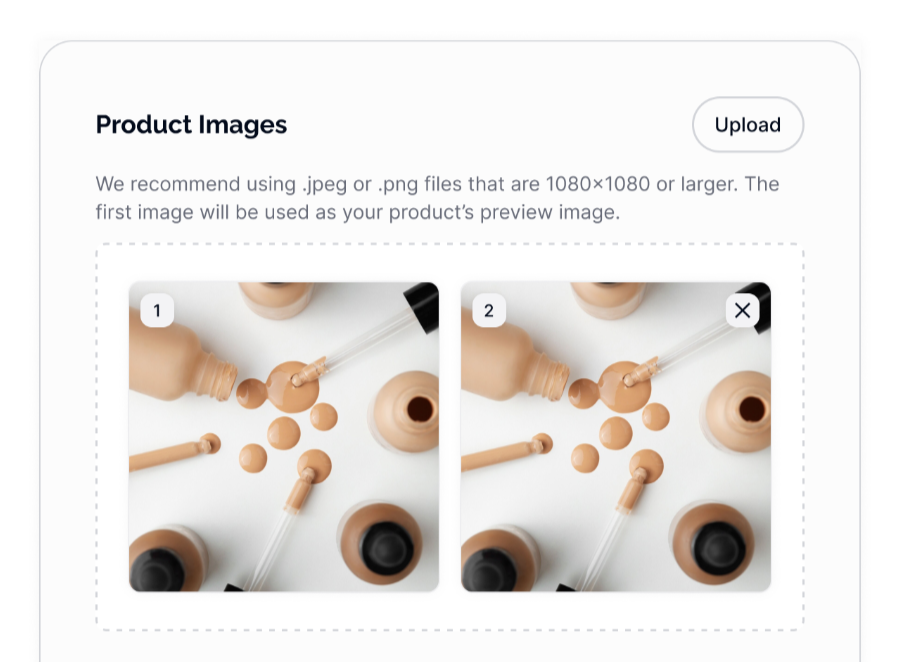
💡 Double check: You have AT LEAST two images attached. If not, you won't be able to move to the next page.
Check your recommended selling price in your domestic currency (scroll the list to find yours), review your key selling points and confirm the product description for both on-site.
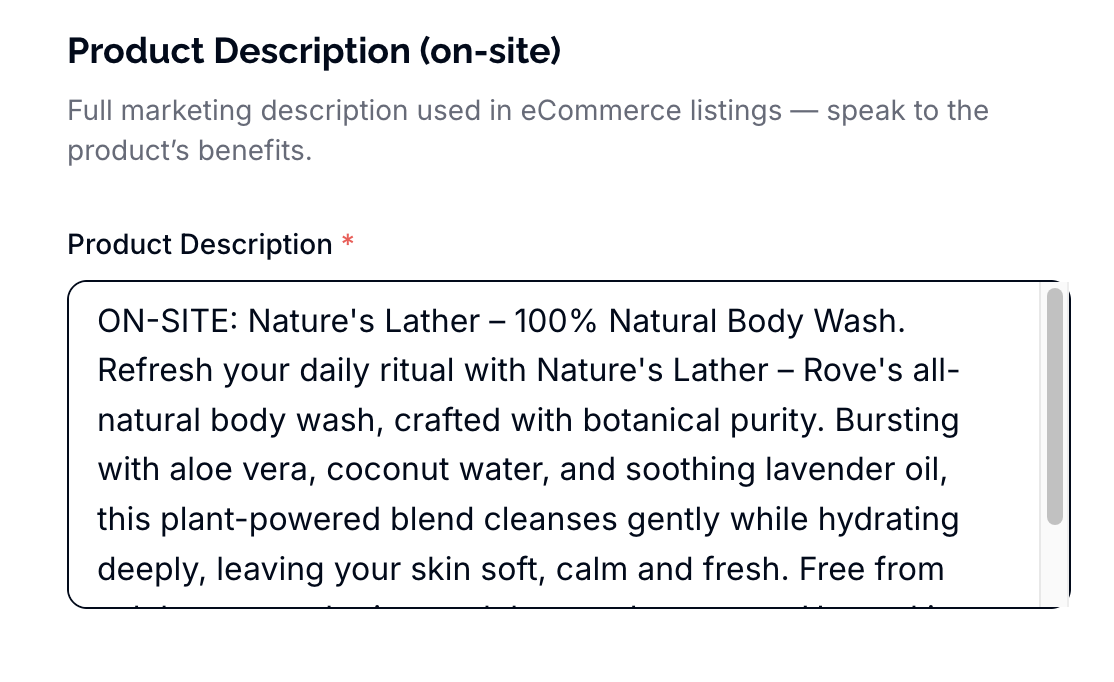
💡 Important: Detailed description for label, site and Key Selling Points is essential for granularity of output. If it's a product in market pull this from places like website, product listings, marketing materials and labels. If it's an NPD infill as you would want the product to appear in market.
Stage 7
Ready to Scan
Hit the red, Ready to Scan button and you'll be taken to the New Scan page to choose your reports and territories!