
Setting up a Competitor Tracker: By Category
If you don't know who your Competitors are and want to understand your Category and who you're competing against, setting up a tracker By Category is for you. If you know who your Competitors are, then head on over here to set up a Custom Category.
Step 1: Start a new tracker
Log in to Competitor Intelligence with your existing Rove details. From your dashboard, which lists any categories you're already tracking, select Track a new category.
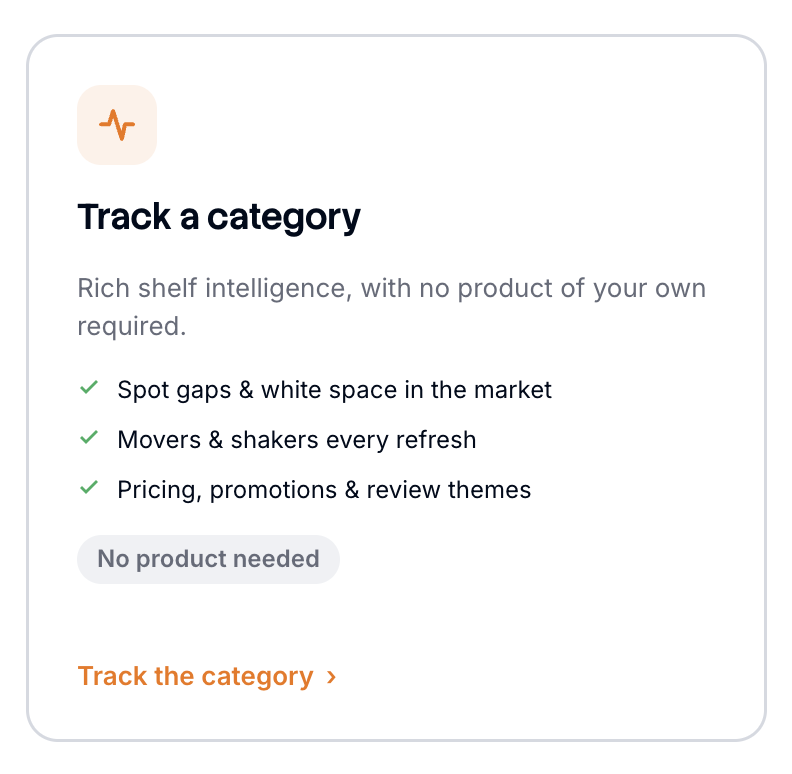
- Track a category if you want a broad view of the landscape, or if you don't sell your products on Amazon. Rove uses the Amazon best sellers list as the basis for the competitive set, which is a strong gauge of momentum, sales volume, and customer appetite.
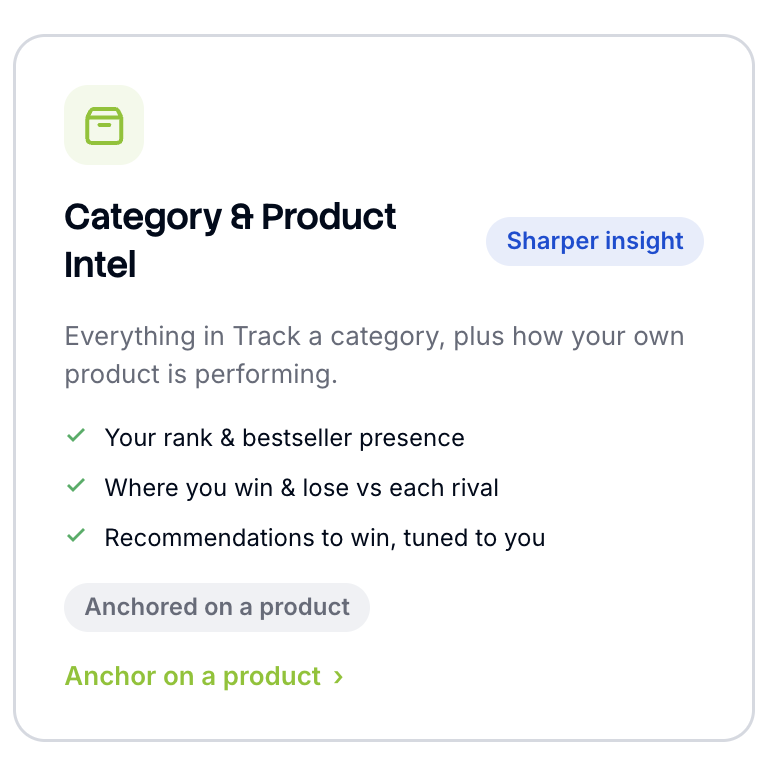
- Anchor to your product if you sell on Amazon. You get everything the category view offers, plus insight tailored to your product: what each change means for you and how you should respond. This is the recommended option where it's available to you. Just put in your Amazon URL and hit enter.
Step 2: Choose your territory
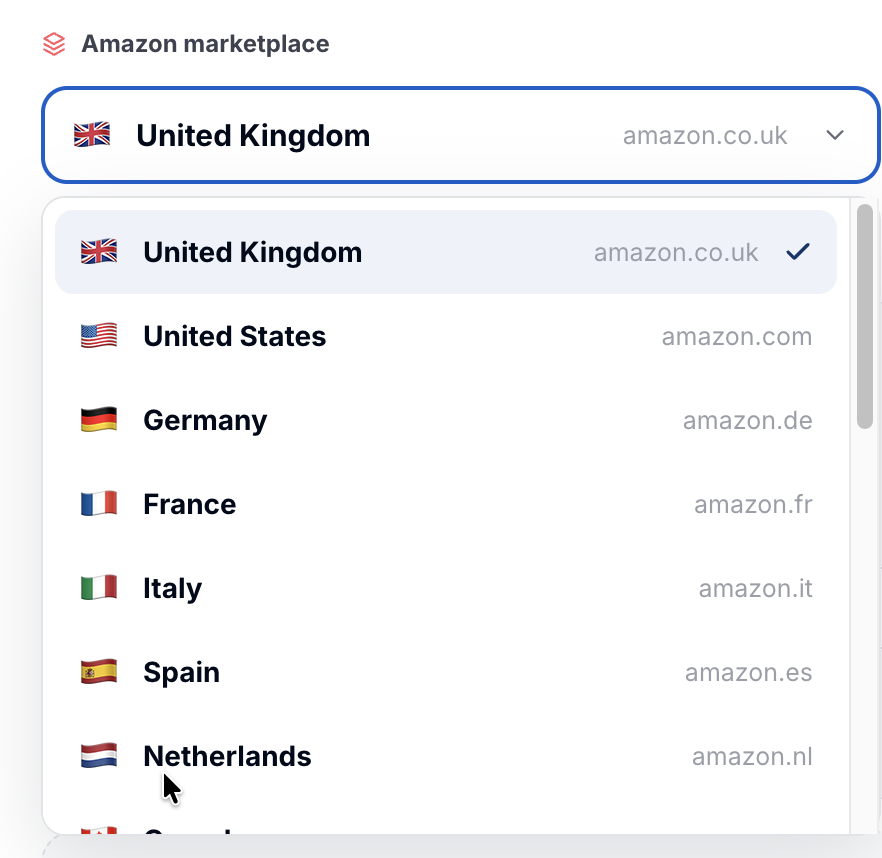
Pick the territory you want to track. You can choose any territory that Amazon operates in.
Step 3: Find your category
Search for the category you're interested in, for example "earphones". Rove immediately pulls the competitive set for that term so you can see exactly what the category looks like before you commit. Use this to confirm it's the right category. If it isn't quite right, adjust your search term and try again.
If you're anchoring to a product instead, provide your product here and Rove builds the competitive set around it.
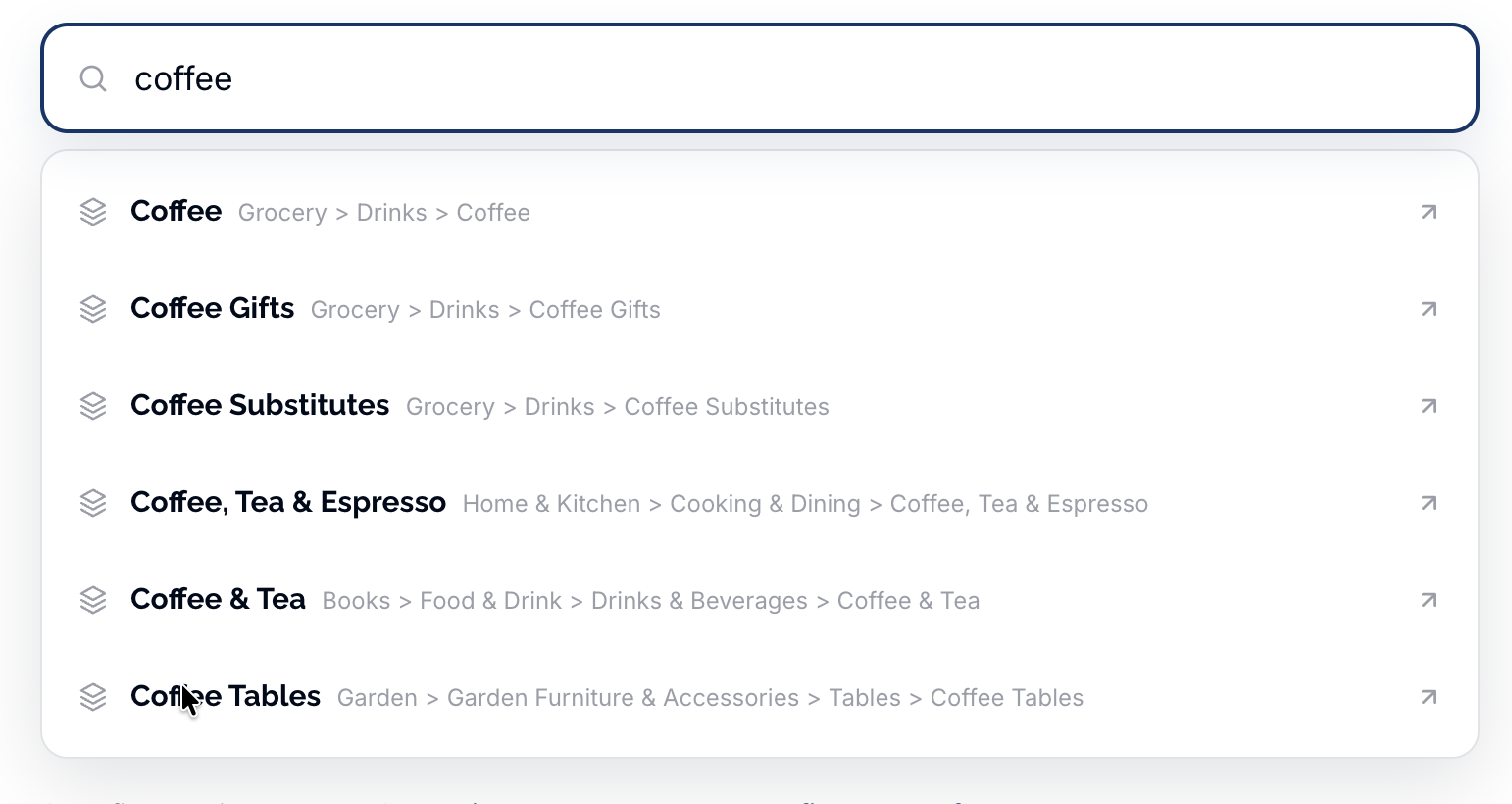
When you're happy with the set, hit Continue. If there are any issues finding your category, please contact support@go-rove.com.
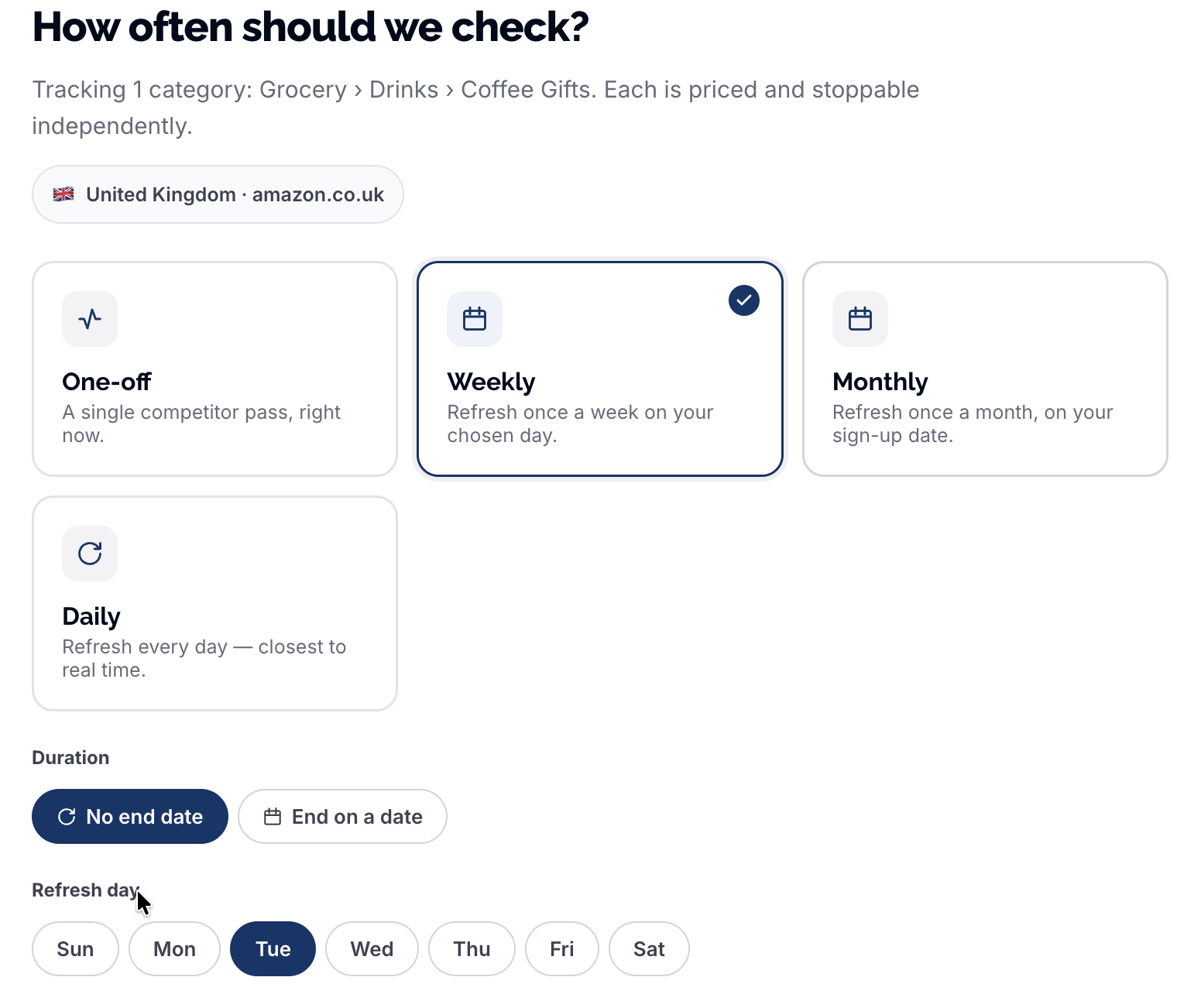
Step 4: Choose frequency
Decide how you want to track:
- One-off snapshot. A single pass of the category, useful for a quick read on the landscape.
- Weekly tracking. Ongoing monitoring with a weekly refresh.
- Daily tracking. The most current view, refreshed every day. Best for fast-moving categories or active pricing decisions.
Step 5: Choose depth
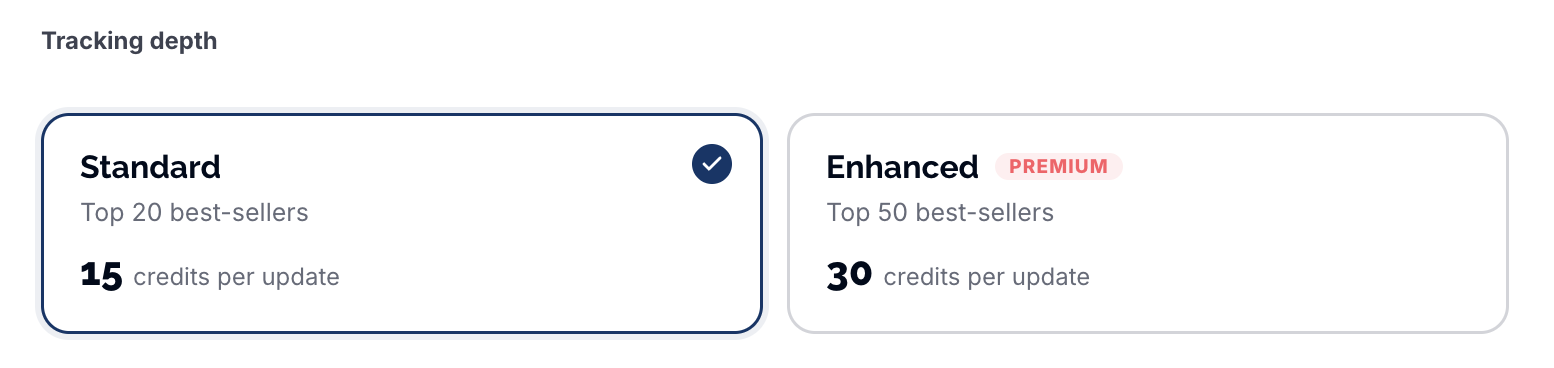
Choose whether to track the top 20 or the top 50 products in the category. The top 50 gives you the fullest picture of the competitive set; the top 20 keeps the focus on the leaders.
Step 6: Confirm and start tracking
Select Confirm and start tracking. Your competitive set appears immediately, and Rove begins analysing it across pricing, promotions, ratings and reviews, trends and movers, feature comparisons, and stock and availability.

The first full analysis takes around three minutes. Once it's ready, open your category to see the results, starting with your recommended focus. For a tour of everything in there, see Understanding your competitor dashboard.