
Setting up a Competitor Tracker: Custom Categories
If you have a specific list of Competitors that you want to keep an eye on them or your product doesn't fit into a clear Category you can create your own Custom Category!
If you do have a natural Category to track or you don't want to track a specific list of Competitors, use Setting up a Competitor Tracker instead. This article covers Custom Categories specifically.
Step 1: Start a new custom category
Log in to Competitor Intelligence with your existing Rove details. From your dashboard, select Track competitors, then choose Build a Custom Category.
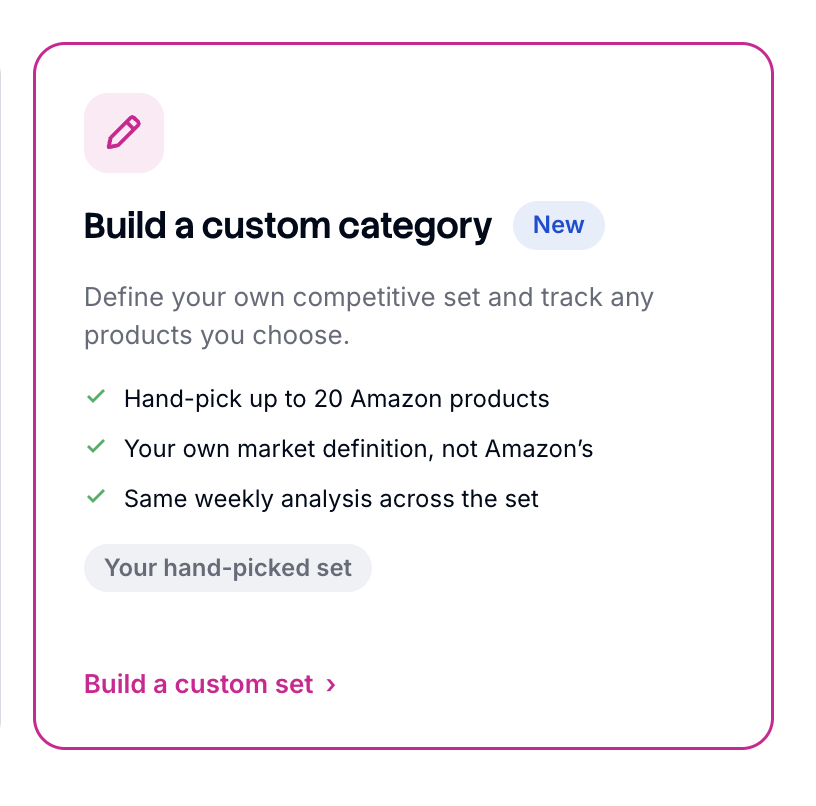
Custom Categories don't use the best sellers list as their starting point. Instead, you build the set product by product, so it fits a market Amazon doesn't define on its own.
Step 2: Name and describe your set
Give your set a name and a short description of the market it represents, for example "Natural Body washes UK". Then pick one marketplace and add an optional description.
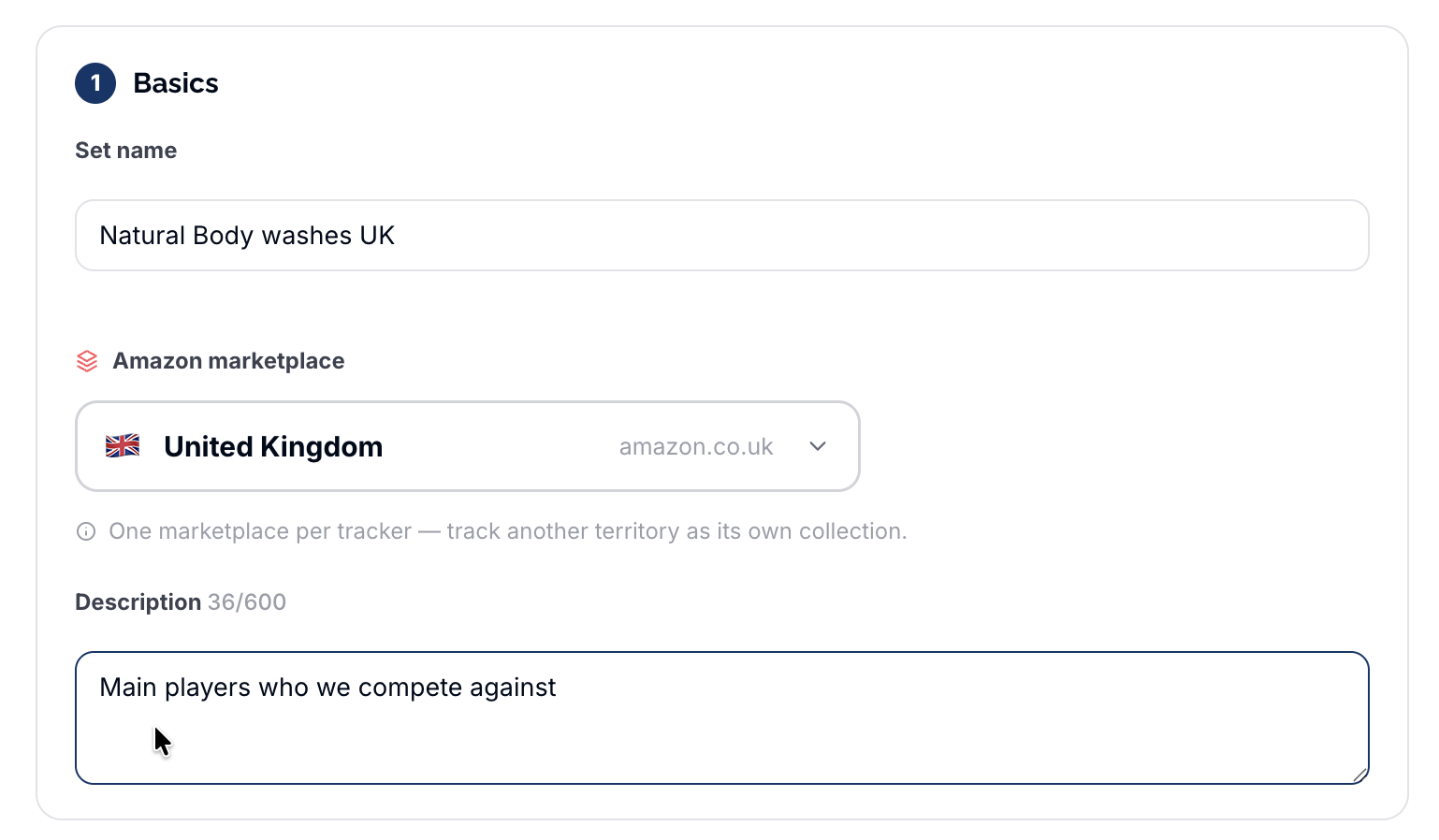
A set covers a single marketplace only. If you want to track the same market in more than one territory, for example the US and the UK, you'll need two separate sets.
Step 3: Add your products
Add products by pasting Amazon links or ASINs, or by searching Amazon directly inside the app. Each time you paste one in, hit 'Add' to save the product: details will appear when you hit continue, after inputting all information.
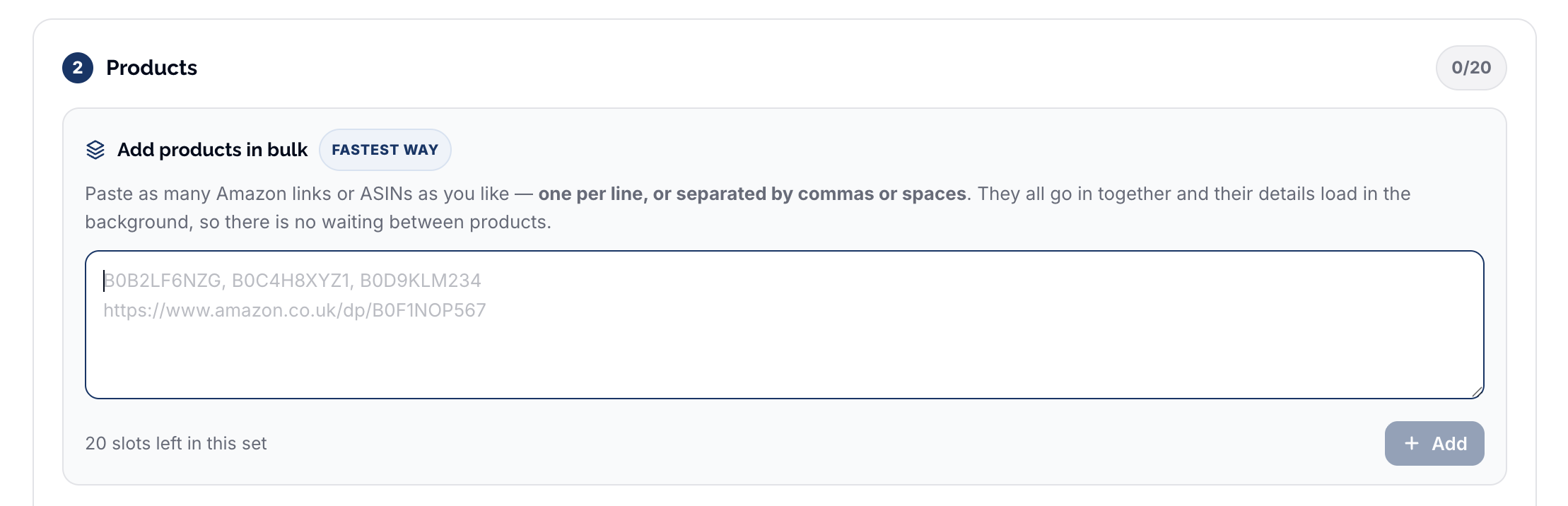
You need a minimum of 3 products. Standard plans can add up to 20; Enhanced plans up to 50. Building the set is free: looking up products and searching Amazon doesn't use any credits.

Step 4: Add shopper keywords & market-sizing
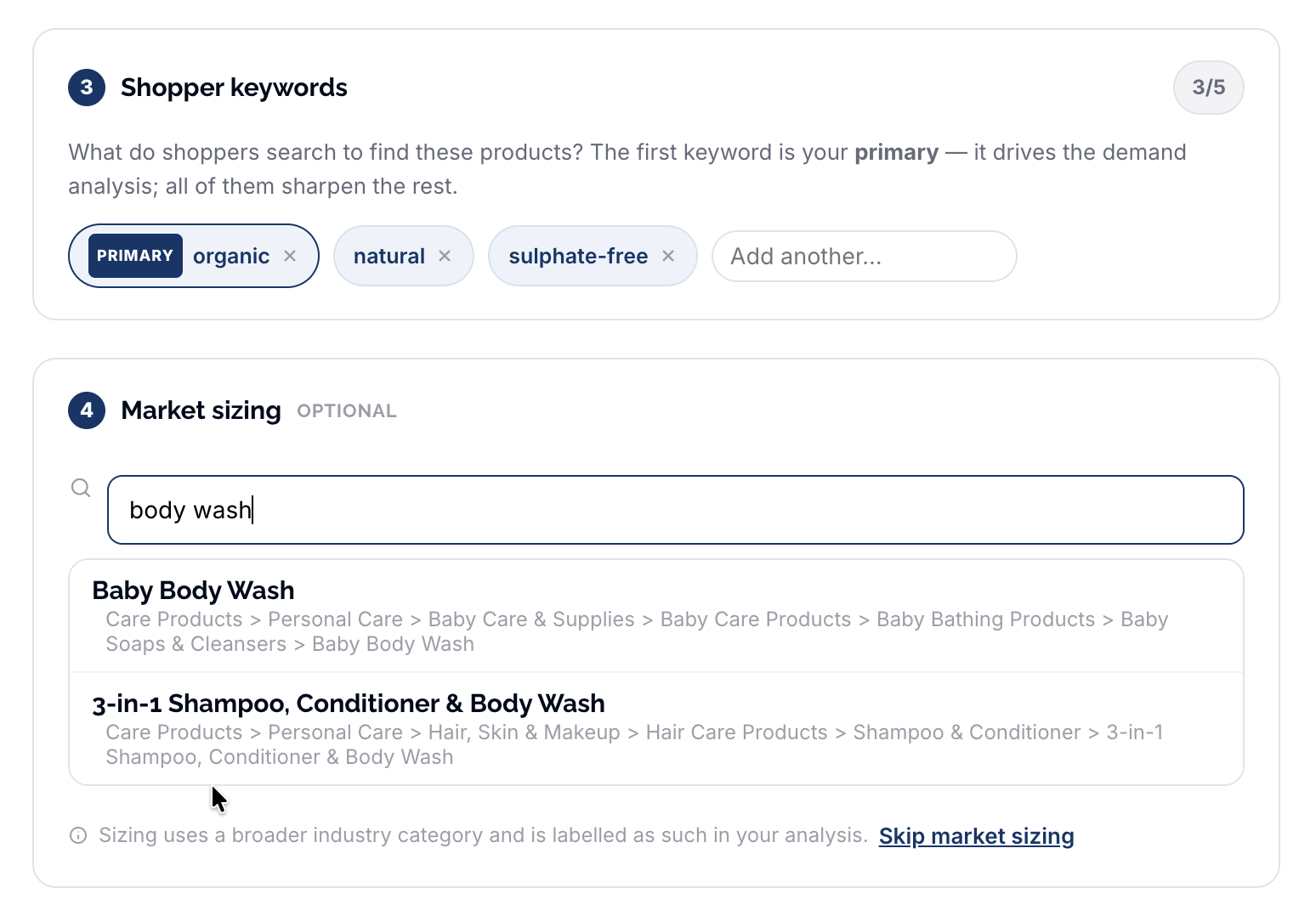
Add between 1 and 5 shopper keywords, the terms a customer would actually search to find this kind of product. The first keyword powers your Demand section.
You can also add a market-sizing category at this point, which pulls in the nearest industry category from our proprietary data source for context. This is optional and you can skip sizing entirely if it's not relevant.
Step 5: Choose frequency
Decide how you want to track:
- One-off snapshot. A single pass across the set, useful for a quick read on the landscape.
- Weekly tracking. Ongoing monitoring with a weekly refresh.
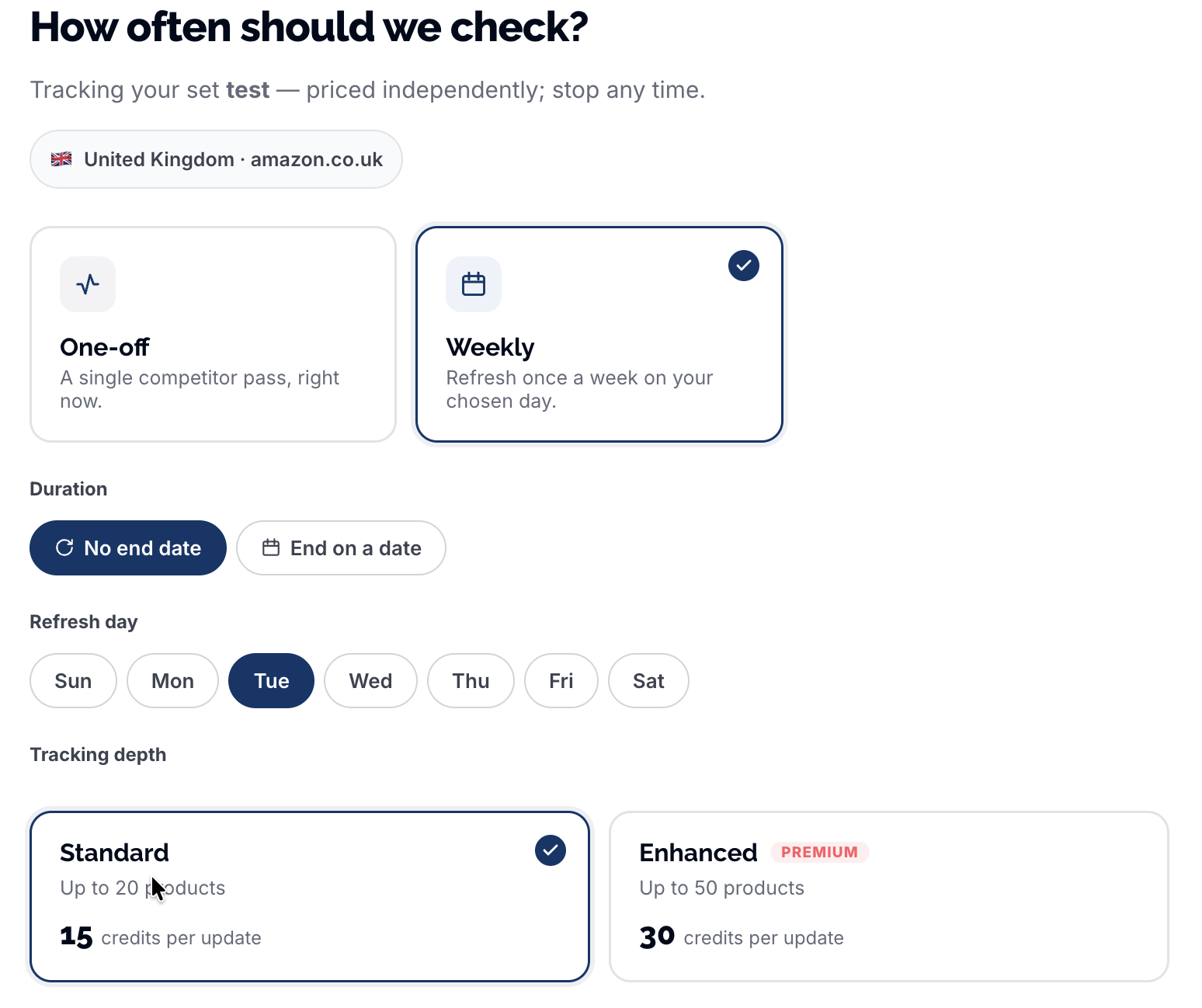
Custom Categories don't currently offer daily tracking.
Step 7: Confirm and start tracking
Select Confirm and start tracking. Rove runs all nine analysis sections against your set: pricing, promotions, ratings and reviews, trends and movers, feature comparisons, stock and availability, and more.
Since there's no best-seller list behind a custom set, there's no ranked "position" the way there is on a standard tracker. Movement is measured against each product's own history instead: its rank within its own Amazon node, price, review velocity and stock.